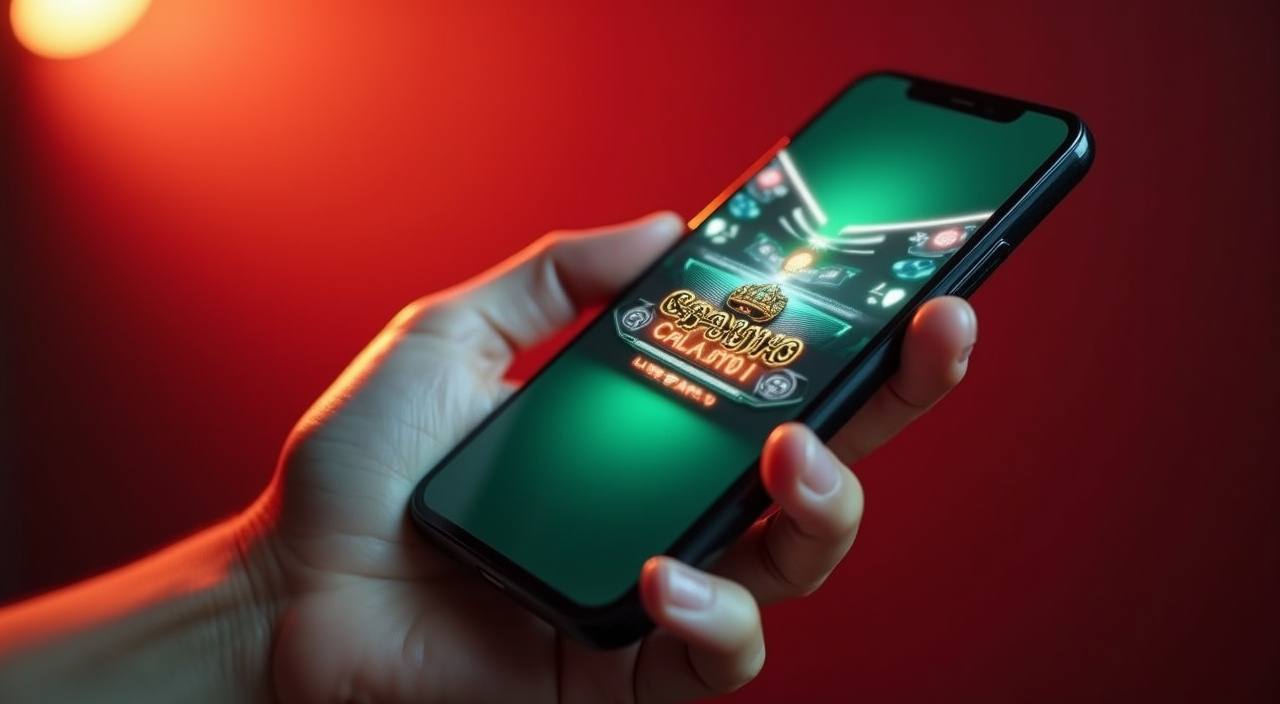
The ligazoom mobile experience runs directly through your browser — open the current domain on any Android or iOS device and your full account, game lobby, and wallet history load without a separate download. Check your account dashboard after login to see whether a dedicated app build is currently available for your region, as availability depends on local law and eligible regions.
When something on the mobile side does not load the way you expect — a page that cuts off, a login that stalls, or a wallet step that needs clarification — our support team is reachable through multiple paths. Check the Help section after you sign in for the current contact options, including live chat and the email route for account-specific questions. The install and browser-access guide is also linked from that same page so you can walk through the compatibility steps without leaving your device.
Live Chat
Reach the mobile support chat directly from the Help section after login. Describe the device and browser version you are using so the team can check compatibility and walk you through the right steps for your setup.
Email Support
For account-specific issues on mobile — login recovery, wallet display questions, or session errors — send a message through the contact email shown in your account dashboard. Include your registered address and a brief description of the issue.
Mobile Access Guide
The published browser-access guide is linked inside the Help section. It covers which browser settings to check, how to reach the full lobby from a mobile screen, and where to find current device guidance for your Android or iOS version.
MOBILE TRUST CHECKS
Stay Secure on Mobile
Accessing ligazoom from a mobile browser requires the same account security habits as desktop. Verify you are on the correct published domain before entering your credentials — the address bar is your first check. Published device guidance is available in the Help section, and our account recovery path is documented there if you ever need to reset access. Keep your login details private and use the official recovery steps rather than third-party links or saved credentials in shared devices.
Verify the Domain
Before logging in on mobile, confirm the address bar shows the current ligazoom domain exactly as published. Phishing pages often mimic the layout; the domain is the one detail they cannot replicate. Bookmark the correct address for faster and safer access next time.
Check Device Guidance
Published device compatibility guidance is shown in the Help section of your account. Review it to confirm your browser version and screen settings match the recommended configuration before reporting a display issue to support.
Protect Your Credentials
Do not save your ligazoom password in a shared or public device browser. Use a private or incognito session when accessing the account on a device that other people also use. Your wallet and transaction records are visible to whoever holds the session.
Use the Published Recovery Path
If you lose access to your account on mobile, follow the recovery steps shown on the login page rather than contacting unverified third-party channels. The official path confirms your registered details and restores access without exposing your account to outside parties.
INSIDE MOBILE VIEW
What the Mobile Interface Covers
Open ligazoom in your mobile browser and the layout shifts to fit your screen — the navigation bar collapses into a compact menu, game category tabs stay reachable at the top, and your account wallet link sits one tap from the lobby. The game discovery section surfaces titles from PG Soft, Habanero, and JDB in a vertical scroll rather than a wide grid, so browsing Fortune Fishing Game or Indonesia Night Spins 501 on a phone screen takes the same steps as on desktop. Account management pages — deposit history, wallet status, and help links — are all rendered within the same browser session.
MOBILE FEATURE SET
Mobile Access Features at a Glance
The mobile browser interface delivers the core account and lobby features without requiring a native application. Game categories, account tools, and help pages all adapt to smaller screens through responsive layout rather than a scaled-down desktop view. Check your account dashboard after login to see the current feature state for your device and region, as specific capabilities depend on local law and eligible regions.
Responsive Game Lobby
The full game lobby — including slots from PG Soft and JDB, live tables, and crash games — renders in a responsive layout on mobile. Category tabs at the top of the screen let you switch between Slots, Live Casino, and Sports without reloading the full page.
Account Wallet Access
Your wallet balance and transaction history are accessible from the account icon in the mobile menu. The view shows your current balance, recent activity, and the GoPay or ShopeePay routes configured for your account, exactly as they appear on desktop.
Help and Support Pages
The Help section, live chat entry point, and email contact link all load correctly on mobile browsers. If you hit a layout issue, the published device guidance page inside Help covers the browser settings most likely to resolve it for Android and iOS.
Session Continuity
A session started on mobile carries over if you switch to desktop before logging out — your game history and wallet state remain as you left them. There is no separate mobile account; the same credentials and account data apply across all devices.
ACCESS STEPS
Mobile Access in 3 Steps
Getting into the ligazoom lobby on a phone takes three browser steps, no app store required. Start by opening the current ligazoom domain in your mobile browser — Chrome on Android and Safari on iOS both render the full interface correctly. Once the page loads, sign in with your registered account details; the lobby and wallet are available immediately after authentication. If the domain or login page looks different from what you expect, cross-check with the published domain shown in the Help section before entering any credentials. The account dashboard after login shows the current state of any dedicated app availability for your region, updated as that information is confirmed.
Open the Current Site
Type the current ligazoom domain directly into your mobile browser address bar, or use a saved bookmark. Avoid opening the site through links shared in messaging apps until you have confirmed the domain matches the published address exactly.
Check Browser Compatibility
The mobile interface is tested on current versions of Chrome for Android and Safari for iOS. If the page layout breaks or a section fails to load, clear the browser cache and try again; the Help section also lists known compatibility notes for older browser versions.
Sign In Securely
Enter your registered email and password on the login screen. If you are on a shared device, use a private or incognito window so the session closes automatically when you leave. The wallet and transaction records become visible immediately after you authenticate.
Confirm App Availability
After logging in, check the account dashboard for the current status of a dedicated app build for your region. Availability depends on local law and eligible regions; the dashboard shows the most current information rather than a static page claim.
BROWSER COMPATIBILITY
Device and Browser Access Checklist
The ligazoom mobile interface is built on responsive web standards, so the requirements center on browser version and screen settings rather than hardware specifications. Check the items below before contacting support about a display issue — most mobile rendering problems resolve with an updated browser or a cleared cache. Availability of all features depends on local law and the eligible regions defined at the time of access.
Mobile Browser Version
Use a current release of Chrome for Android or Safari for iOS. The lobby and account pages are tested against recent browser versions; older releases may not render the live casino tables or the wallet section correctly.
Screen Layout and Zoom
The responsive layout assumes default system text size and browser zoom at 100%. If you have increased the text size in your browser or device accessibility settings, some navigation elements may overlap. Resetting zoom to default resolves most layout shifts.
Account Login Required
Game launch and wallet access both require an authenticated session. The lobby preview is visible without login, but category navigation, Fortune Fishing Game, and Crash Fast Lift all require you to sign in before the game frame opens.
Domain Verification
Confirm the address bar shows the exact current ligazoom domain before logging in. If the page loads but looks visually different from previous sessions, compare the domain character-by-character with the published address in the Help section.
Currently Supported Devices
The published device guidance in the Help section lists the browsers and OS versions confirmed compatible at this time. Check that page rather than relying on a cached version of this one, since supported configurations are updated as the platform is tested on newer releases.
APP FAQ
Questions About the ligazoom App
Common questions from mobile users about accessing the lobby, checking app availability, and keeping the account secure on a phone or tablet.
Is there a ligazoom app I can download from the app store?
Current app store availability depends on local law and your eligible region. Sign in and check your account dashboard to see the most up-to-date information on whether a dedicated app build is offered for your location. The mobile browser interface covers the full lobby in the meantime.
Which browsers work with the ligazoom mobile site?
Current versions of Chrome on Android and Safari on iOS both render the full interface, including the live casino tables, slot lobby, and wallet pages. If you experience layout issues, clear your browser cache and confirm you are on the latest browser version before contacting support.
Do I need a separate account for mobile access?
No separate account is needed. Your existing ligazoom login works across all devices. Wallet balance, transaction history, and game access all reflect the same account whether you sign in from a phone, tablet, or desktop browser.
Can I access my GoPay or ShopeePay wallet from mobile?
Yes. The wallet section in your account menu shows the payment routes configured for your account, including GoPay and ShopeePay where available. The same routes visible on desktop are accessible from the mobile browser session after you authenticate.
What should I do if the mobile page does not load correctly?
First clear your browser cache and reload the page. If the issue continues, check that your browser is updated to a current release. The Help section inside your account lists known compatibility notes and links to the published device guidance for Android and iOS.
How do I find games like Fortune Fishing Game or Crash Fast Lift on mobile?
After signing in, use the category tabs at the top of the lobby screen. Slots and crash games appear under their respective tabs in a vertical scroll layout. Use the search field if you want to go directly to a specific title without scrolling through the full category.
 Casino / Sports